# Remove Watermarks from Your Video
HTML source: https://reavideoany.online/remove-watermark-from-video
Canonical HTML: https://reavideoany.online/remove-watermark-from-video
Clean detectable watermarks on video you own or have permission to edit. Learn which marks Rea Video can detect and when to review the result.
## Fixed corner marks and moving watermarks
Small marks on a plain background tend to give the cleanest results. The breakdown can flag visible marks and record the area they cover within a shot. Marks that change corners, cross faces, or cover a detailed background can leave visible traces.
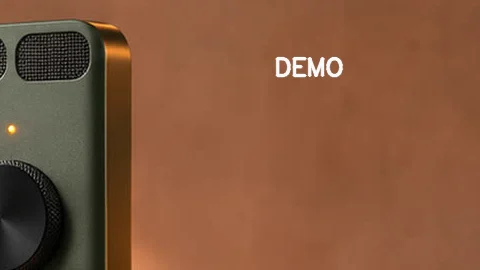
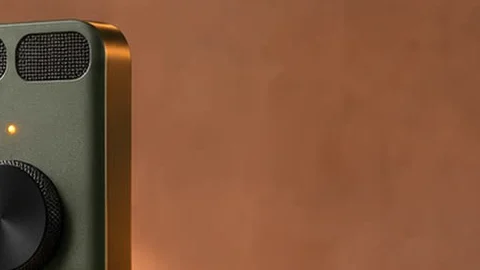
A demonstration mark was added to our own footage. Both close-ups show the same part of the frame before and after cleanup.
## Review the breakdown before cleaning
Use footage you own the rights to, or get permission from the rights holder that covers removing the mark and your intended use. Check the terms if you plan to republish the result. If you have a clean original, start with it to preserve detail.
1. Import the clip and check the detected overlays in the breakdown.
2. Select the watermark cleanup option when preparing the remake.
3. Preview the affected shots before exporting. Check each point where a mark moves or overlaps an important detail.
## Export frame rate and cleanup limits
Watermark cleanup runs in the remake workflow and applies to marks detected in the breakdown. The result exports as a 24 fps MP4. A small corner logo over a plain wall has consistent neighboring pixels to fill from. A mark crossing a face, subtitle, or patterned wall can leave a visible patch. Preview affected shots to decide whether to use the clean original or keep the original shot. If your final edit needs a different frame rate, check the 24 fps export in your editor before publishing.
## Frequently asked questions
### Does cleanup restore the pixels hidden by a watermark?
The cleanup fills the detected area using nearby pixels. Review the result for visible changes, especially on faces, text, and textured backgrounds.
### Can I keep the captions I need?
Check the detected overlays in your project. Keep captions that belong in the edit and review the export to confirm they appear as expected.
### What if Rea Video misses a watermark?
Check the overlay list and preview where the mark appears. Cleanup only applies to areas detected in the breakdown. If a mark is missing, use the unmarked source or finish that section in your editor.
## Related guides
- [How to Remake a Video Shot by Shot](https://reavideoany.online/video-remake)
- [TikTok Watermark Remover for Authorized Videos](https://reavideoany.online/tiktok-watermark-remover)