How to Remake a Video Shot by Shot
Follow the video remake workflow from detected cuts to export. Learn which timing details stay and how to rerender a shot while reusing locked clips.
Start a new projectRemake a video one shot at a time
Upload a video up to 60 seconds and 100 MB, or paste a public URL to a video file. Supported formats are MP4, MOV, WebM, MKV.
- Run the breakdown. Check the detected cuts, shot durations, and keyframes against the source.
- Choose which shots to keep or restyle. Add a reference image when the selected method needs one.
- Review the quote for the shots you want to generate. Preview a take and lock it when you are happy with it.
- Rerender the shot that needs another take. Reuse locked clips at 0 model credits, then assemble and download the MP4.
Download the shot-by-shot breakdown
After a breakdown completes, open Shot breakdown → Subtitles & reports. Use the illustrated HTML report to review the shots and their timing. Download the HTML or Markdown report, or choose Offline report with media (ZIP) to keep the report with its available images and audio. If the breakdown produced subtitles or overlays, download the available SRT or ASS files from the same tab.
When to remake one shot
Generating the whole clip again gives you a new take of every shot, which can be useful when you want an entirely different sequence. A shot-by-shot remake lets you change one shot in an existing cut. Keep a good original shot or lock an approved take, then generate a new take only for the shot that needs work. Check the result against the adjacent cuts before exporting.
What stays on the timeline?
The export joins clips at the cut points in your breakdown and fits each clip to its shot duration. It makes straight cuts at rebuilt boundaries. Add effects such as dissolves or wipes between shots in your editor if you need them. Keep an original shot to retain its camera movement. The “Edit the source clip” method uses the full shot as a reference. A frame-based rebuild uses still images, so the generated movement can vary. You can keep the source audio on the exported timeline.
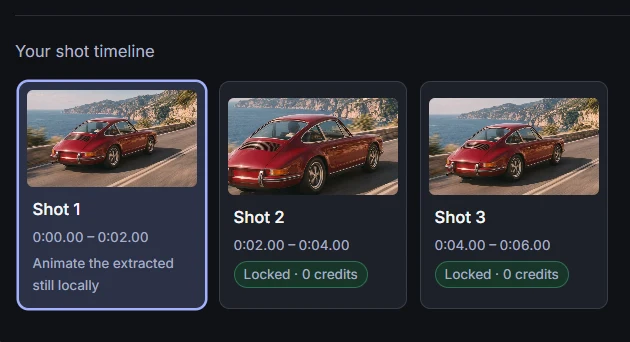 Studio shot list
Vertical and landscape exports
You can upload vertical 9:16 or landscape 16:9 video. The MP4 export uses the source aspect ratio and pads shots that have a different shape. Export resolution choices depend on the selected shots and models. Common presets include 480p, 720p and 1080p, with presets up to 4K where supported. To use a different aspect ratio, reframe the export in your video editor.
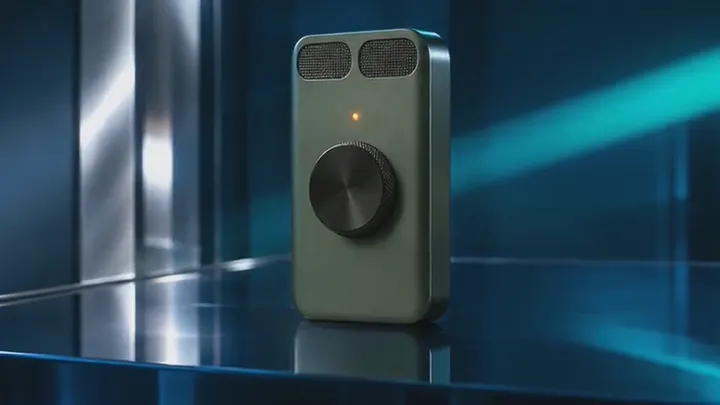 16:9 landscape
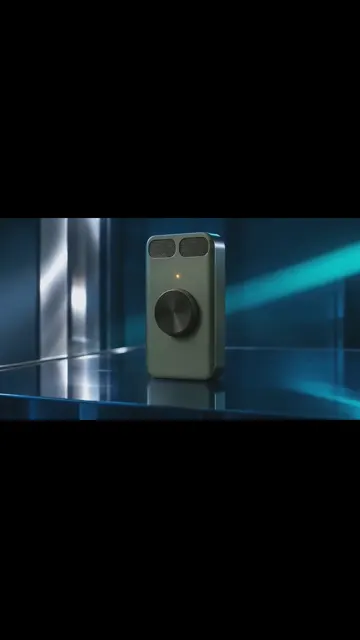 9:16 portrait
Compare the timing in a six-second clip
The coastal drive comparison shows two versions of the same shot. The car changes from red to teal. Both run for 6 seconds at 24 fps. Play them together and drag the divider to compare the same moment. The example is silent.
Frequently asked questions
- Can I regenerate one shot without rerendering the others?
- Yes. Lock takes you want to reuse, then request a new take for the shot you want to change. The quote shows the credits for new work, and a reused take costs 0 model credits.
- Can I test the workflow before paying for generation?
- Sign in to start. Your account can complete one free breakdown. A failed first attempt leaves it available. Check the cuts and keyframes before approving a render quote.
- How much does one shot cost?
- The first successful breakdown is free per signed-in account. A new shot quoted at 100 credits uses about $0.80–$0.90 worth of credits at the listed pack rates. Reusing a locked take costs 0 model credits. The studio shows the actual quote before you confirm. Credits are purchased by the pack when online checkout is available.
- Can I retain the original audio?
- If your source clip has audio, keep it on the remake timeline. Review the output with sound before you export or return the clip to your editor.
- Will the remake keep my captions or subtitles?
- Unmodified source shots keep captions baked into the picture. For a rebuilt shot, turn on Text layers when available to add back detected text. Check the wording, position and timing in the preview. Add any missing captions in your video editor before publishing.